Xitoring Document
Home
FAQ
Support
Register
Home
FAQ
Support
Register
  • Xitoring

    • Introduction
    • Release Notes
    • Xitoring Release Notes
    • Linux Xitogent Release Notes
    • Windows Xitogent Release Notes
    • Xitoring Mobile App Release Notes
    • Account Management
    • API Access & Automation
    • Team Management & Collaboration
    • Billing & Subscription Management
  • Getting Started

    • Getting Started with Xitoring
    • Workflows & Guides
    • Monitor Your First Server
    • Import / Migration
    • Migrate from UptimeRobot to Xitoring
    • Migrate from Pingdom to Xitoring
    • Migrate from Uptime.com to Xitoring
    • Migrate from BetterStack to Xitoring
  • Help & Support

    • FAQ & Troubleshooting
    • Glossary
  • Server Monitoring

    • Server Monitoring
    • Graphs
    • Live Statistics
    • Monitor Services
    • Auto-Triggers
  • Xitogent on Linux

    • Install Xitogent on Linux
    • Update Xitogent on Linux
    • Uninstall Xitogent on Linux
  • Xitogent on Windows

    • Install Xitogent on Windows
    • Uninstall Xitogent on Windows
    • Xitogent Service
    • Update Xitogent on Windows
    • Disk Performance (I/O)
  • Xitogent on Azure

    • Xitogent on Azure
    • Monitor Azure Linux VM
    • Monitor Azure Windows VM
  • Xitogent CLI

    • Xitogent CLI
    • Xitogent Pause/Unpause
    • Xitogent Status
    • Xitogent debug
    • Xitogent Diagnosis
    • Which data we collect
  • Xitoring CLI

    • Xitoring CLI
  • Uptime Monitoring

    • What is Uptime Monitoring
    • Monitoring Nodes (Geographic Locations)
    • What is Check
    • Auto-Discovery
    • Auto Fault Tolerance
    • Heartbeat Check
    • Ping Check
    • HTTP(S) Check
    • DNS Check
    • FTP Check
    • SMTP Check
    • IMAP Check
    • POP3 Check
    • TCP Check
    • UDP Check
  • SSL Monitoring

    • SSL Monitoring
  • Incidents

    • Incidents
    • Incident's Root Cause
    • Incidents Notification
    • Incident Notes
    • Resolving Incidents Manually
    • Incident Policy
  • Maintenance Schedule

    • Maintenance Schedule
  • Email Reports

    • Email Reports
  • Integrations

    • Integrations
    • Apache Integration
    • CoreDNS Integration
    • CouchDB Integration
    • Disk Health Integration
    • Docker Integration
    • Dovecot Integration
    • Exim Integration
    • HAProxy Integration
    • IIS Integration
    • InfluxDB Integration
    • Kafka Integration
    • KeyDB Integration
    • LiteSpeed Integration
    • MongoDB Integration
    • MySQL Integration
    • Netstat Integration
    • Nginx Integration
    • OpenLiteSpeed Integration
    • OpenVPN Integration
    • PHP-FPM Integration
    • Postfix Integration
    • PostgreSQL Integration
    • RabbitMQ integration
    • Redis Integration
    • MS SQL Server Integration
    • Supervisor Integration
    • Varnish Integration
    • Wireguard Integration
  • Notifications

    • Notifications
    • Creating Notification Roles
    • Email Integration
    • Mobile Push Notifications
    • SMS Integration
    • Phone call Integration
    • Webhook Integration
    • Integration for Slack
    • Telegram Integration
    • WhatsApp Integration
    • Mattermost Integration
    • Discord Integration
    • Google Chat Integration
    • Microsoft Teams Integration
    • Atlassian Opsgenie Integration
    • Splunk On-Call Integration
    • Pushover Integration
    • Pushbullet Integration
    • Gotify Integration
    • Ntfy Integration
    • Spike.sh Integration
    • PagerDuty Integration
    • Zapier Integration
    • AlertOps Integration
  • Status Page

    • Status page
  • 3rd Party Status Pages

    • Using 3rd party Status Pages
    • Atlassian Status Page Integration with Xitoring
    • Status.io Integration with Xitoring
    • Statuspal Integration with Xitoring
    • Instatus Integration with Xitoring
  • Dashboards

    • Main Dashboard
    • Custom Dashboards
  • Metrics

    • Metrics
  • MCP Server

    • Setup & Tool Reference

Resolving Incidents Manually

In some cases, you may want to manually resolve an incident rather than waiting for the system to automatically detect a resolution. The "Resolve Manually" feature allows you to take action and mark an incident as resolved even if the monitoring system has not detected an actual resolution.

How to Manually Resolve an Incident

  1. Navigate to the Incident: First, go to the incident you want to resolve.

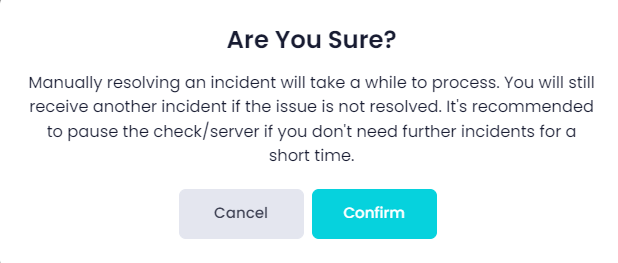
  2. Click the "Resolve Manually" Button: At the top right of the incident page, click the "Resolve Manually" button. This will open a confirmation modal as shown below:
Manually Resolve an Incident
  1. Confirm Your Action: In the modal, you will be prompted to confirm that you want to resolve the incident manually. The system warns you that the process may take a while, and you may still receive further incidents if the underlying issue is not fully resolved.

    • Cancel: If you decide not to resolve the incident manually, click Cancel to close the modal.
    • Confirm: If you are sure that the incident can be manually resolved, click Confirm to proceed.
  2. What Happens After Manual Resolution: Manually resolving the incident does not guarantee the issue is fully resolved. If the problem persists, the system may trigger another incident. It's recommended to pause the check or resolve the root cause if further incidents are not desired.

Important Notes

  • Best Practice: Before manually resolving an incident, ensure that the issue has been resolved on your end. Otherwise, additional incidents will continue to trigger.
  • Confirmation Required: The system prompts for confirmation to prevent accidental resolutions.
Last Updated: 7/27/26, 4:34 PM
Prev
Incident Notes
Next
Incident Policy